README from GitHub, MIT
Beat-Train for the MPC Sample
A drum game for the Akai MPC Sample. Pick a song, and its drum part comes down a note highway on the screen; play it on the pads. You get hits, misses, streaks and accuracy, and a miss turns the drums in the song down.
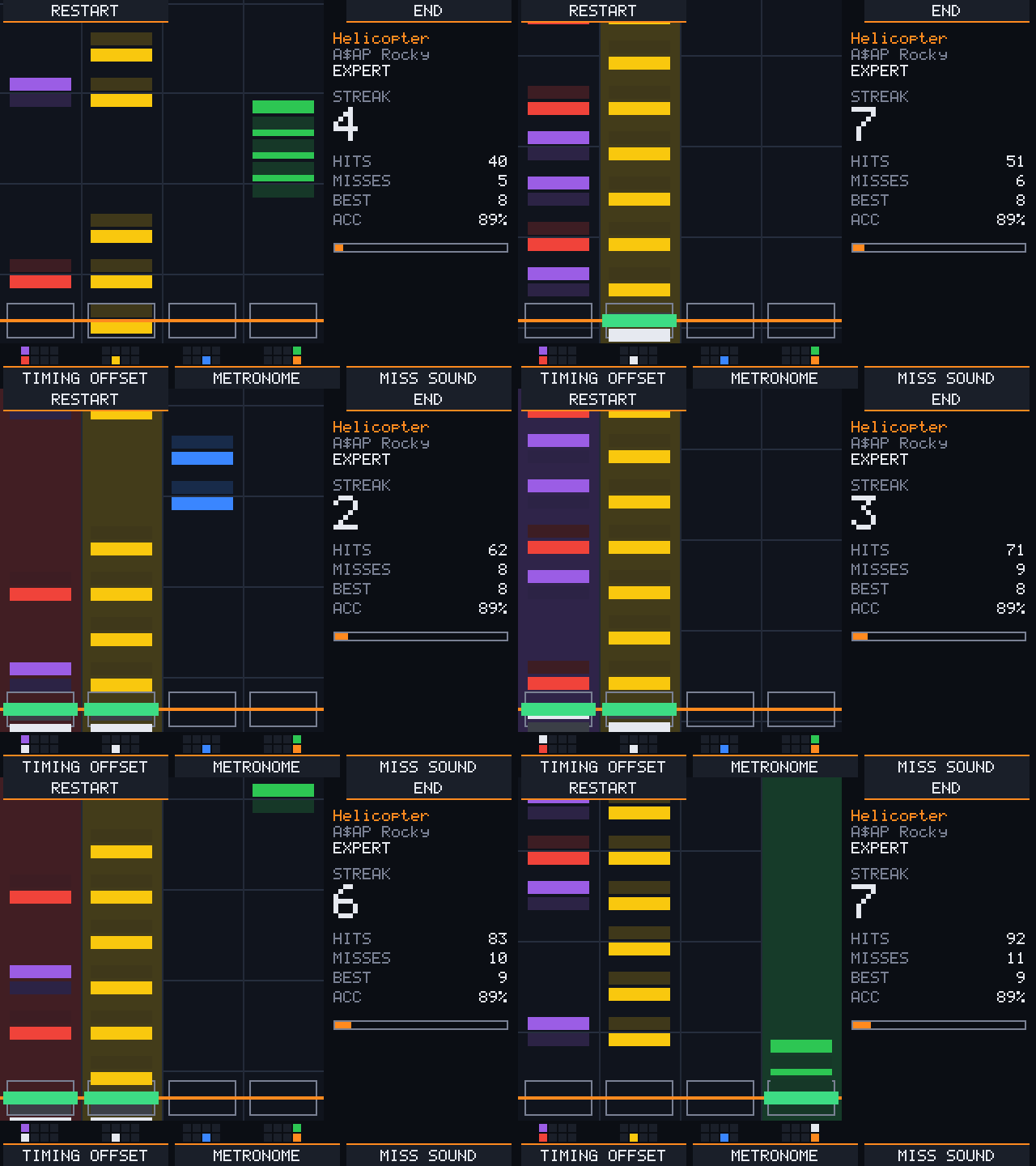
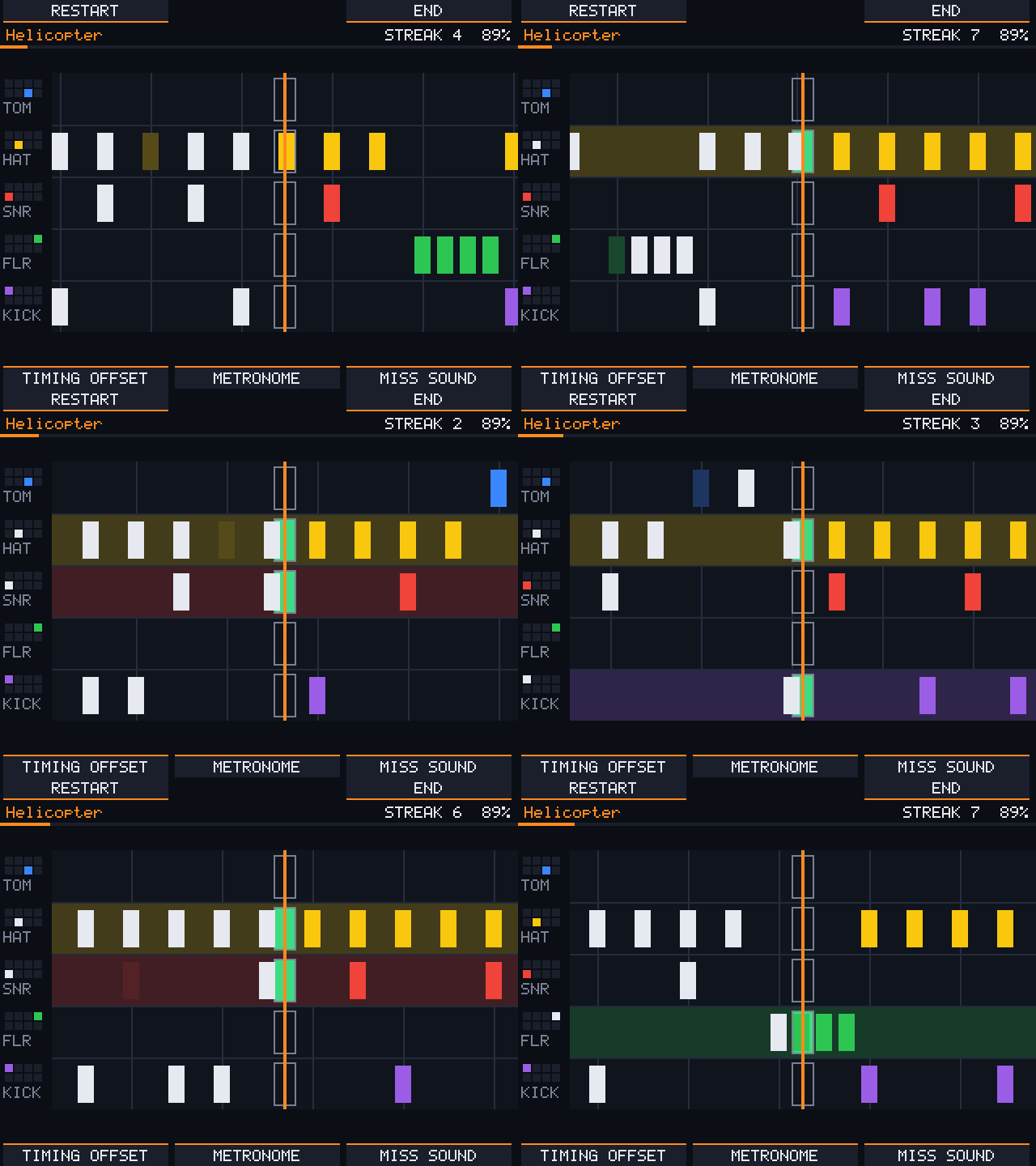
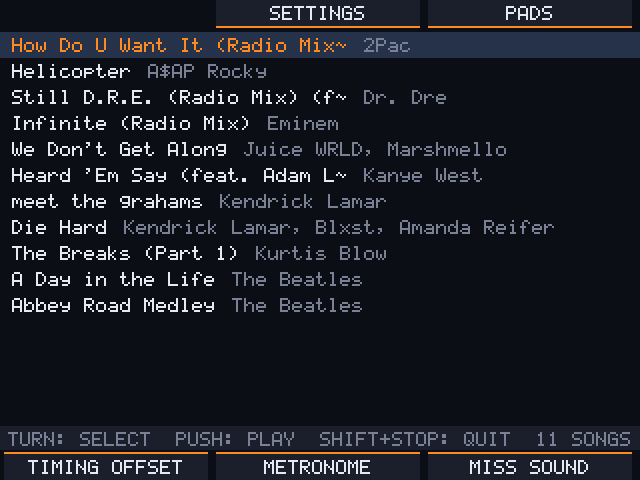
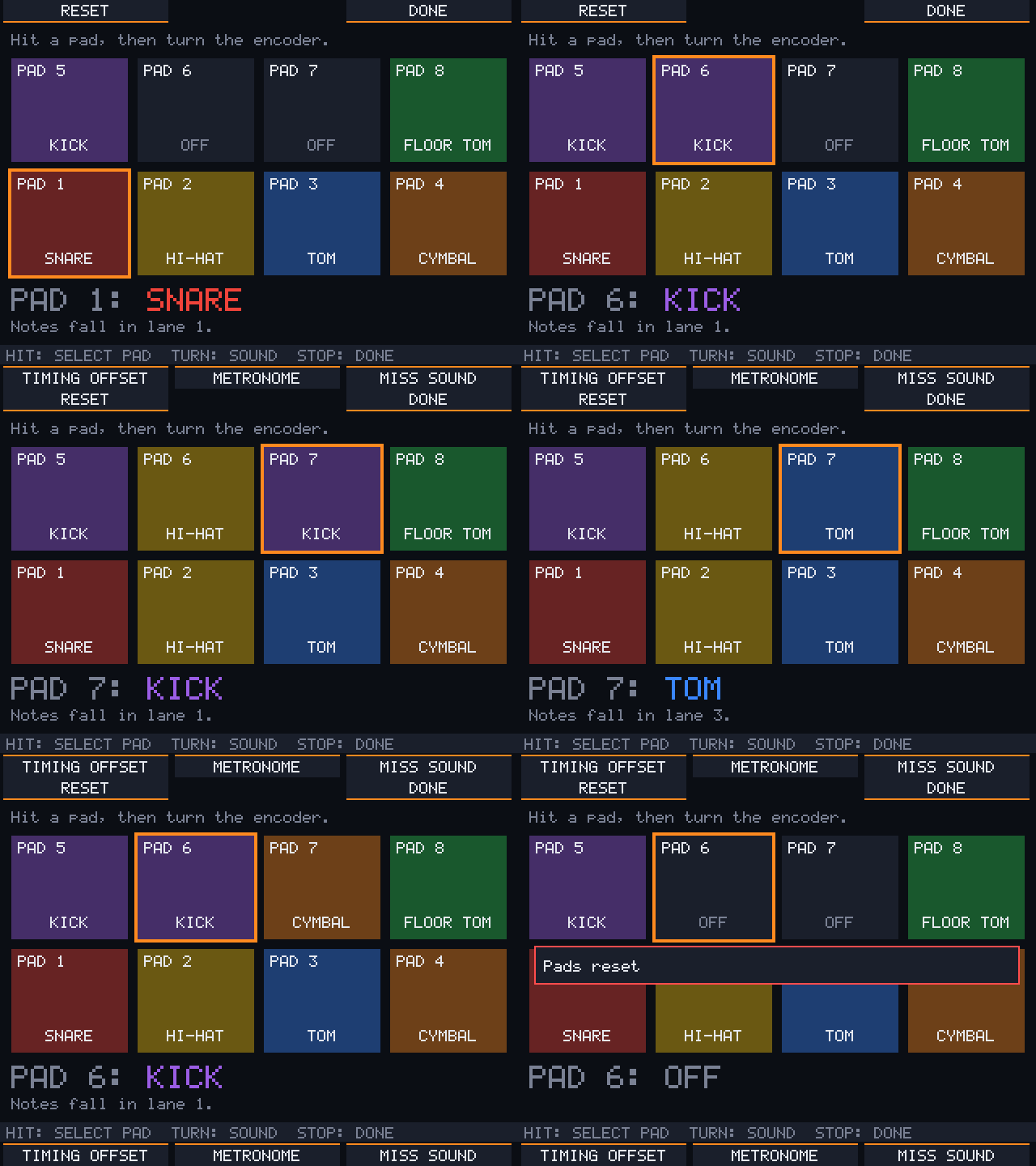
Beat-Train runs from the SD card. Nothing on the MPC is changed: take the card out, or power off, and the MPC is exactly as before.
Unofficial and not affiliated with Akai. Use at your own risk.
What you need
- An Akai MPC Sample with firmware 1.3.0.x. To check: without a card, press SHIFT + PAD 8 (MIDI Config); the version is at the top right.
- A microSD card formatted as exFAT, just for Beat-Train. A card holds only one start-up program, so not the card you use for SampQOL OS (unless you use a boot menu, see Together with other programs).
- Songs in Clone Hero format (see Songs).
Install
- Download
beattrain-mpc-sample.zipfrom Releases and unzip it. - Copy both folders,
autorunandBeatTrain, to the top level of the card. - Put your songs into
BeatTrain/Songs/on the card, one folder per song.
Start and quit
- Put the card in while the MPC is running, or switch the MPC on with the card in. The MPC asks "Start Beat-Train?": B1 starts it, B3 keeps the MPC.
- Starting closes the MPC software. Save your work first.
- SHIFT + STOP quits Beat-Train and the MPC software comes back.
- POWER asks "Do you want to shut down?": B3 saves and switches the MPC off, B1 goes back.
If the MPC stops at 0 % while loading after you switch it on, the question is hidden behind the loading screen: press B1 (Beat-Train) or B3 (MPC).
Playing
| Control | What it does |
|---|---|
| Encoder | turn to choose a song or difficulty, push (or PLAY) to start |
| B1 B2 B3 | what the bar at the top of the screen says above each button |
| Pads 1–4 | snare (red), hi-hat (yellow), tom (blue), cymbal (orange) |
| Pads 5–8 | kick, –, –, floor tom (green) |
| PLAY | pause and resume |
| STOP | end the song and see the results; in menus: back |
| K1 | timing offset: turn it if your hits feel early or late |
| K2 | metronome volume (all the way down = off) |
| K3 | miss sound volume (all the way down = off) |
| MAIN VOLUME | volume |
| SHIFT + FADER | song speed for practising, 50–100 %, at the same pitch |
| SHIFT + K1 K2 K3 | volume of the song, the drums and all other parts; the bar shows only those the song has |
The pads light up in their drum colour. On the four-lane highway each note's upper half belongs to the upper row of pads, the lower half to the lower row.
Under Highway in the settings you choose how the notes run: down four lanes as above, down one lane per pad (vertical by pad), or from right to left with one row per pad (horizontal). Small maps of the pads under each lane, or left of each row, show which pad to hit. Strike line moves the line you hit on away from the edge, a quarter, a third or half way in, so you see more of the notes you have just played.
Settings (B2 in the song list): timing offset, hit window, metronome, miss sound, highway direction, strike line, and a volume for each part of the song (drums, bass, vocals…). B2 opens them during a song too: the song pauses, and DONE takes you back after a 3-2-1.
Pads (B3 in the song list): hit a pad, then turn the encoder to choose its drum. B1 puts all pads back to the defaults.
Settings and pads are saved on the card in BeatTrain/settings.json.
Songs
Each song is a folder in BeatTrain/Songs/ with:
song.ini: title, artist and so on,notes.midornotes.chart: the charts, with a drum part,- the audio:
song, and optionallydrums,bass,guitar,rhythm,vocals,keysandcrowd, as.mp3,.oggor.wav.
Song folders made for Clone Hero work as they are, and many are shared online.
Rock Band packages (_rb3con, .mogg) and Opus audio don't work. Convert those to
a Clone Hero folder first, for example with Onyx.
No chart for a song you like? Trackyard makes one from the audio (MP3, WAV, OGG or FLAC) on your computer, lets you fix it in an editor and saves it as a song folder for the card.
If something goes wrong
- No question when you put the card in:
- Check that the card is exFAT and that the
autorunfolder sits at its top level. - Check that the firmware is 1.3.0.x.
- Don't change the files in
autorun: the MPC checks them.
- Check that the card is exFAT and that the
- "No songs found": the song folders must be in
BeatTrain/Songs/, each with asong.ini. - The MPC hangs: hold POWER until it switches off, then remove the card.
- Logs:
autorun/logs/on the card shows what happened at the last start.
Updating
Replace the autorun folder on the card with the new one. Your songs and
settings in BeatTrain stay as they are.
Together with other programs
mpc-boot-thingy puts a boot
menu on the card, so Beat-Train can sit next to other MPC programs such as
SampQOL-OS. Boot thingy takes over the card's autorun folder, so install it
first as its README describes, then add beattrain-mpc-sample.zip as an app.
Your songs stay in BeatTrain/Songs/ at the top of the card.
This is not tested with Beat-Train yet. If you try it, please say how it went in the discussions.
More
- How it is built and how it works inside: docs/development.md
- Audio decoding uses minimp3 (CC0) and stb_vorbis (public domain).
- License: MIT. The bundled decoders keep their own licences.
- Thanks to virtual-mpc-sample and mpc-sample-root-ssh for the hardware research the port builds on.